
The Student Profile Conversion Report shows how students progress through the enrolment journey by year level. Compare results year to year or campus to campus.
Student Profile Conversion Report
The report counts completed actions, not statuses. This gives a factual view of how each student is progressing.
What the Report Shows
- How students progress through the enrolment journey.
- The stage where most students drop off or stall.
- How year levels compare against each other.
- Where to focus enrolment and marketing effort.
- How campuses compare against each other.
- Which year levels decline during the enrolment journey.
How It Works
- Select the stages to report on.
- Select a calendar year. Select multiple calendar years to compare results.
- Apply additional filters for more detail.
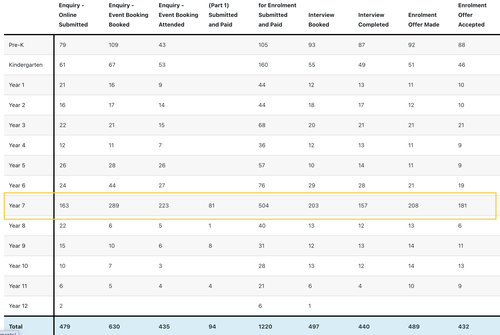
- Review the results. The report counts a 1 in the relevant column for each student registered for the selected calendar year who has completed a selected stage.
How the Stages Work
A student counts in every stage they complete. For example, a student who submits an event booking form adds a 1 to the event booking column for their year level. The same student submitting an application adds another 1 to the application column. Booking an interview adds a 1 to the Interview Booked column.
This shows the real number of students completing each activity in the enrolment journey.
How the Report Relates to Statuses
The report is not linked to status changes. A status change can happen without any related action, which misrepresents conversion numbers.
For example, moving a student to an interview status suggests the interview is complete, even when the carer has not booked or attended one. A student moved to the offer stage stays there until the offer is made. A student can sit in a status without any related action assigned or completed.
The report compares conversions based on completed actions for this reason.
Note: For a report based on status changes, use the Student Status Conversion Report. It shows how students progress from status to status.
Selecting the Stages to Compare
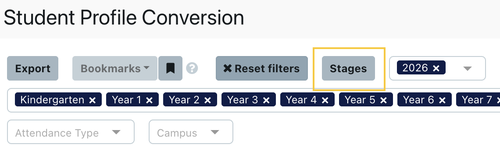
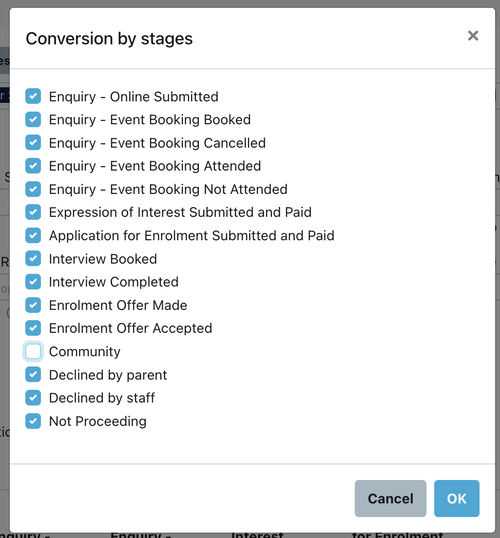
Select the stages to compare under Stages. For example, track students from Enquiry - Event Booking Attended to Application Submitted, Offer Made and Offer Accepted. Adjust the stages to see Declined or Not Proceeding students.
Checking the Numbers
Every number in the report links to the All Prospective screen. Click any number to open All Prospective with the matching filters already applied. From there, check student details or run bulk actions for that year level and stage.
Handling Manual Entries
Add a manual date to every manual entry to keep the report accurate.
For example, a Student Profile created manually after a carer phones the school defaults to the Enquiry - online status. The student has not submitted an enquiry form, so the report does not count them. Add a manual enquiry date to record the enquiry.
The same applies to bookings added manually through the booking tab. Add a manual booking date so the report counts the student under Enquiry - Event Booking Booked.

Using the Declined and Not Proceeding Statuses
EnrolHQ splits students who leave the enrolment journey into three statuses. Used correctly, these show the point in the journey where students leave.
- Declined by parent: the carer receives an offer and does not accept it. This shows how many carers decline offers.
- Not Proceeding: the carer withdraws before receiving an offer. This shows how many carers stop partway through the enrolment journey.
- Declined by staff: the school chooses not to make an offer. For example, a waitlisted student does not receive an offer, or the school decides against an offer after an interview.
When the Numbers Do Not Add Up
- The report only counts Student Profiles with completed stages. For example, a student added manually as a contact after a phone call only counts as an enquiry once a manual enquiry date is added.
- The report only shows stages or forms the school uses. For example, a school that does not use the Enquiry or Expression of Interest form has no data for that stage.
Export and Bookmark
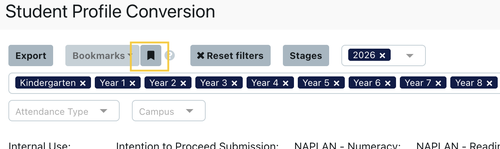
Bookmark commonly used filters for quick access. Export the results to a Excel file.
Comparing Multiple Calendar Years
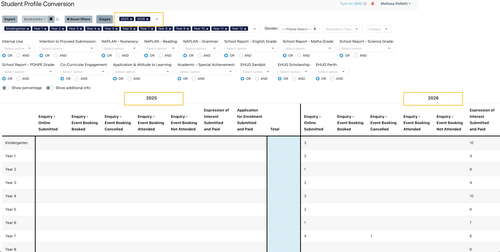
Add a calendar year to compare results year to year.
Comparing Campuses
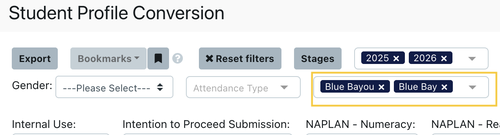
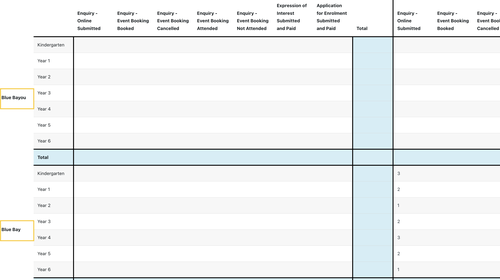
Add a campus filter to compare campus numbers. Each campus shows the year levels set under Settings > Year of Entry Settings.
Adjusting Conversion Stages
Combine stages under Settings > Conversion Stages. Reorder the stages here to change the order they appear in the report.

Group several sub-statuses into one stage so the report shows a single combined number. For example, combine Declined by staff, Declined by parent and Not Proceeding into one consolidated Not Proceeding stage.

Add extra stages or Custom Form submissions to the report.

Default Stages
The default stages track actions completed during the enrolment journey.
- Enquiry - Online Submitted: an enquiry form is submitted.
- Enquiry - Event Booking Booked: an event booking form is submitted.
- Enquiry - Event Booking Attended: an event is attended.
- Application Submitted and Paid: an application form is submitted.
- Expression of Interest Submitted and Paid: a General Purpose Application is submitted. Some schools use a different label for this stage.
- Interview Booked: an interview is booked.
- Interview Completed: an interview is marked as complete.
- Offer Made: an offer is made.
- Offer Accepted: the carer accepts the offer.
- Declined by parent: the carer receives an offer and declines it.
- Declined by staff: the school chooses not to offer a place. For example, the year level is full and the student is on the waitlist.
- Not Proceeding: the carer withdraws before receiving an offer.
Note: For conversion rates from a specific event or event type, use the Event Conversion Report.
Additional Features
- Export: the button in the top left exports the report to an Excel file.
- Bookmarks: save the current filter setup for quick access on the next visit. Filters also save in the URL. Bookmark the URL or send it to another EnrolHQ user to open the report with the filters applied.
Last reviewed: 21 October 2026