
The Event Conversion Report shows how students progress through each enrolment stage after a specific event. Teams use it to measure how effective each event is at turning interest into enrolments.
What the Event Conversion Report Shows
The report gives a detailed view of each student’s enrolment journey after registering for a selected event. It tracks actions rather than statuses, so the results reflect what each student has actually done.
Use the report to see:
- How many students registered for an event but did not attend.
- How many students attended an event but did not submit an application.
- How many students attended an event and applied but did not book an interview.
- How many students attended an event and completed an interview but did not accept an offer.
- How many students attended an event and progressed all the way to current student.
- Event attendance compared against a different event.
- Enrolment progress compared against a different event.
How the Report Works
- Select one or more events to report on.
- Choose the timeframe for enrolment progress after event attendance.
- Filter on Event Booking Status, or on other available filters, for more detail.
- Review the results. The report displays every profile who is or has been registered for the selected event, along with their enrolment progress within the selected timeframe.
Filters
The Event Conversion Report uses the same filters as the Student Status Conversion Report, with the addition of event selection.
- Standard filters: Year of Entry, Calendar Year of Entry, Gender, Attendance Type and Campus appear on all EnrolHQ reports. Attendance Type and Campus display only when set up in Settings > School Settings > Attendance Type and Settings > Campuses.
- Student Profile Categories: displays only when set up in Settings > School Settings > Student Profile Categories.
Report Options and Filters
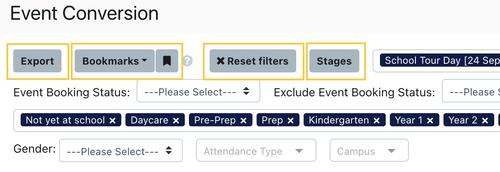
Export: exports the current selection in XLSX format.
Bookmarks: saves a specific event comparison to use again later.
Reset Filters: clears all selected filters. Use it to remove any filter selected by mistake that affects the results.
Stages: sets which information the report displays. Read the Student Profile Conversion Report article for more on how stages work.
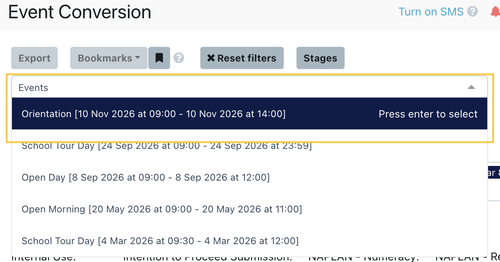
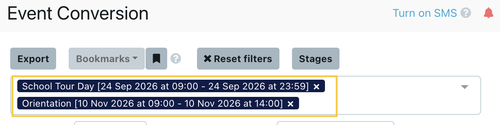
Events: selects the event or events to report on or compare.
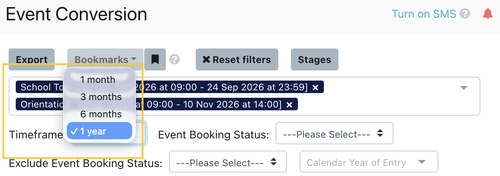
Timeframe: sets a reporting timeframe, including 1 month, 3 months, 6 months or 1 year.
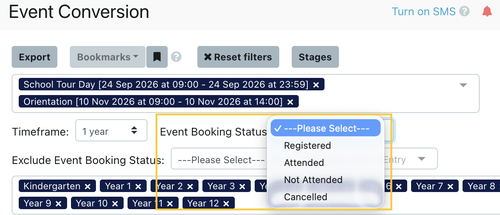
Event Booking Status: restricts the results to a specific event booking status.
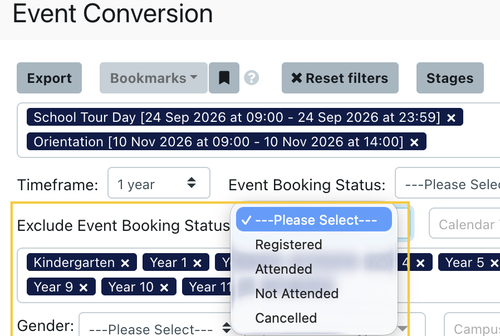
Exclude Event Booking Status: excludes the results for a specific event booking status.
Show Percentage: displays student numbers as percentages.
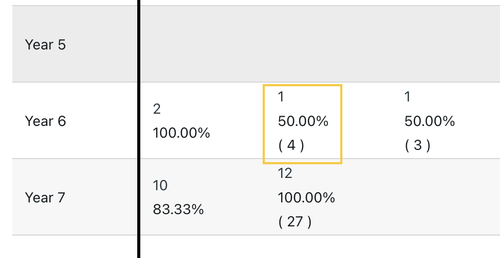
Show additional info: displays the total number of attendees alongside the number of Student Profiles. For example, one family with three attendees displays as 1 (3).
Why Don't the Numbers Add Up?
Two things affect the totals in this report.
The Report Counts Student Profiles, Not Attendees
The main number in each stage is based on EnrolHQ Student Profiles rather than total attendees. A family with four attendees registered displays as 1. This keeps email sending accurate, as the system sends one reminder email per family.
Select Show additional info to display total attendee numbers alongside the profile count.
The Timeframe Limits the Results
The report only counts enrolment actions that fall within the selected timeframe. For example, a student who attends an interview and accepts an offer several years after the event booking does not appear in those later stages.
Adjusting Conversion Stages
Conversion stages work the same way as in the Student Profile Conversion Report. Read the Adjusting Conversion Stages in the Enrolment Journey section in this Knowledgebase article for the full steps.
Last updated: 21 October 2026