
Interviewers may want to have a physical page to take notes when conducting an interview, you can add different Questions and request that any Notes are added to the PDF
How to create questions in the 'Interview PDF'
Go to Interviews > Settings > select 'Print Notes in the Review PDF'

You can edit/add to the questions that are attached to the 'Blank Interview PDF' for each Student Profile.
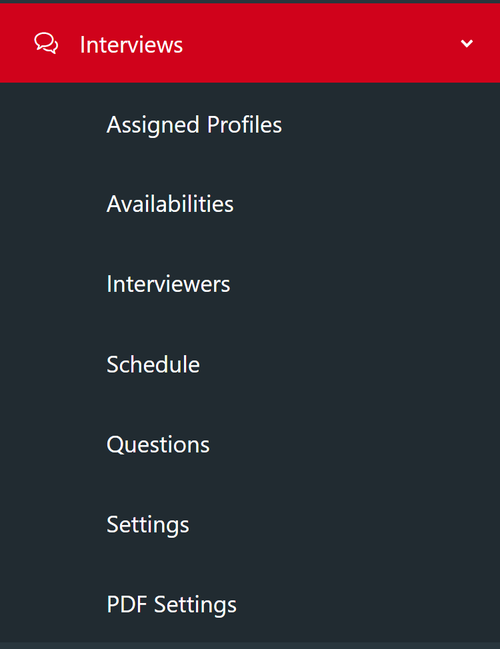
Go to 'Interviews' > 'Questions'
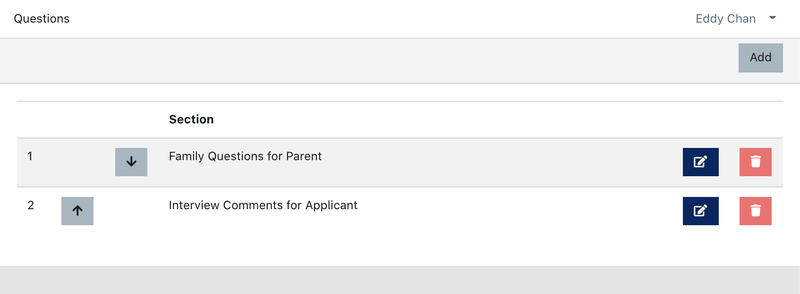
You can create multiple sections by using the 'Add' button. Each section has it's own questions and is printed on a separate page of the Interview PDF. For example if the interview is conducted by multiple people you may split the questions so that one section is conducted by a Registrar, and the other by a Principal or Deputy Principal. You can re-order the sections which will affect which order the pages print on the Enrolment PDF.
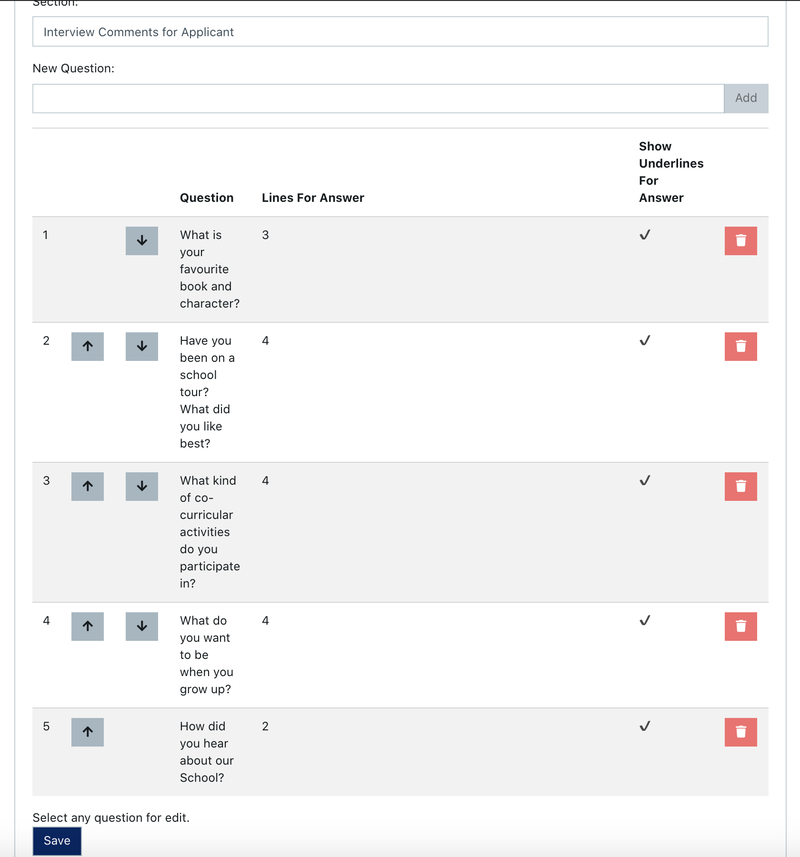
Within each section, add your questions one at a time by typing it in the 'New Question' box and clicking 'Add' on the right-hand side. You may then scroll to the bottom to change the settings for each individual question. If you want to edit an existing question, click on it and it will pop up at the bottom of the screen.
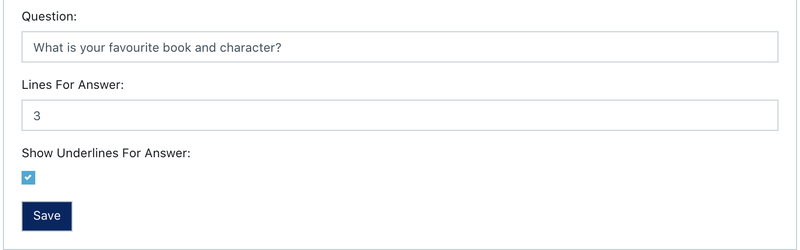
You can edit the question itself by choosing how many lines to show for an answer (this provides spaced lines to write the answer). If you prefer to have white space with no lines, untick the 'Show Underlines For Answer' box.
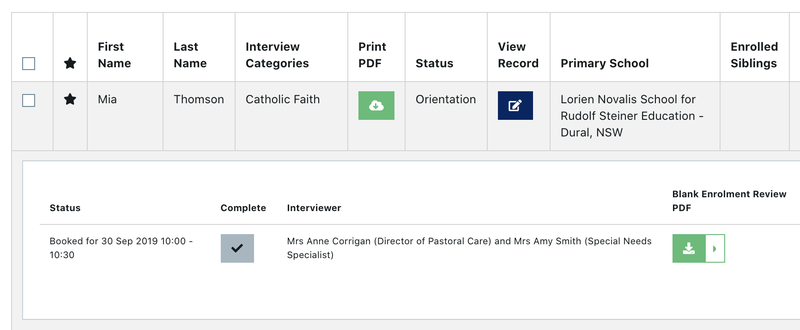
Once you're done you can go to 'Assigned Profiles' to see the results of your work. Pick any student record and click the 'Blank Enrolment Review PDF'. This report can be attached to the student after the interview using the upload button.

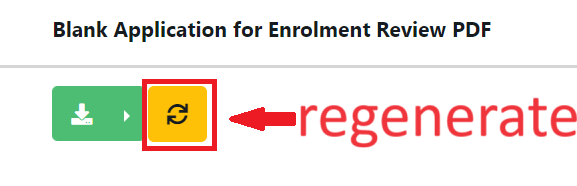
If you need to regenerate the report because additional notes or information has been updated you will need to go to the Interview and the generate report button (if this has already been generated it changes to green) select the right hand side arrow to regenerate the report. After this use the green button to download the updated PDF
If you haven't assigned any student profiles then you will need to go to the Contacts > All and pick a record to use the Bulk Actions to Assign to an Interviewer.
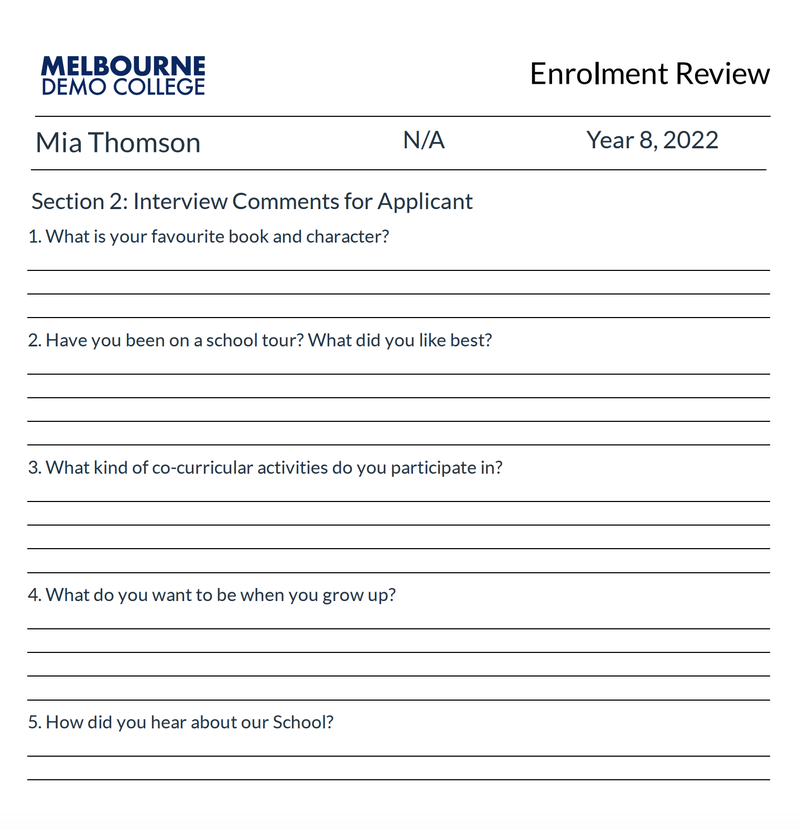
Once you download the PDF, if you go to pages 2 and beyond, you will see each section with its questions printed out as you have set up like below.
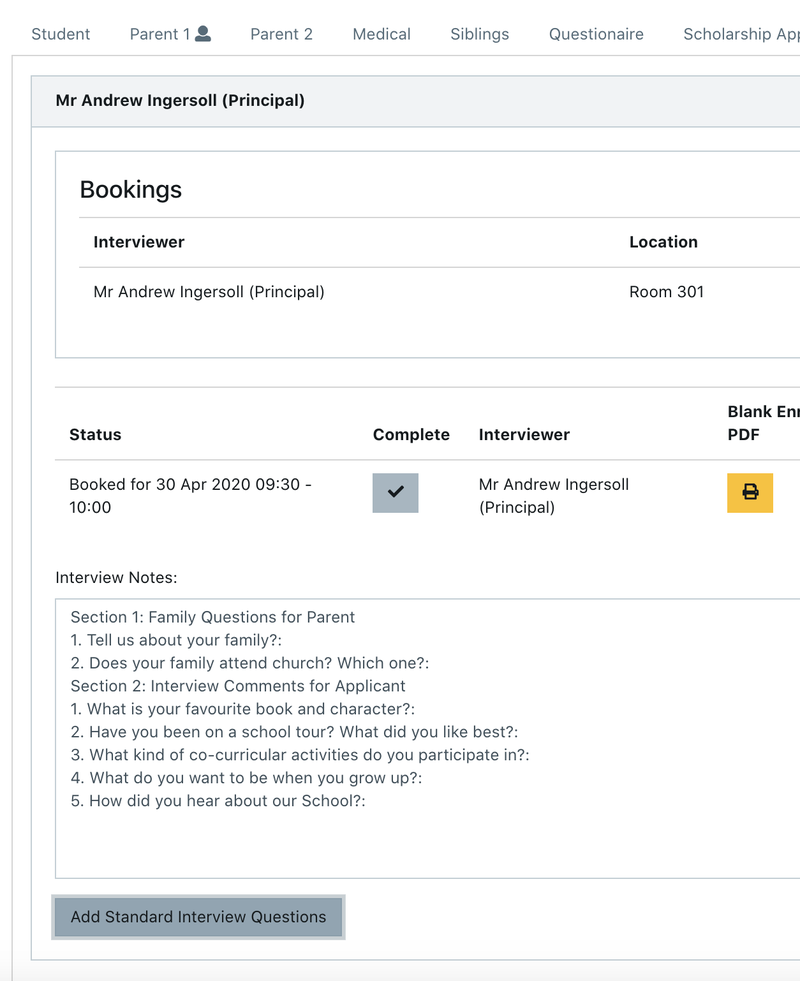
One cool feature if you don't want to print the PDF but want to type the notes into the 'Interview Notes' box is there's a "Add Standard Interview Questions" button at the bottom of the Interview Tab in the Student Profile. If you click this it will copy all the pre-set interview questions into the box so you can type the answers inline.
Interview PDF - update name and details selected
You can change what options you want to display on the header page of the Interview Questions:
Go to Interview > PDF settings
The first Option is to change the name of the Interview PDF (released June 2026)
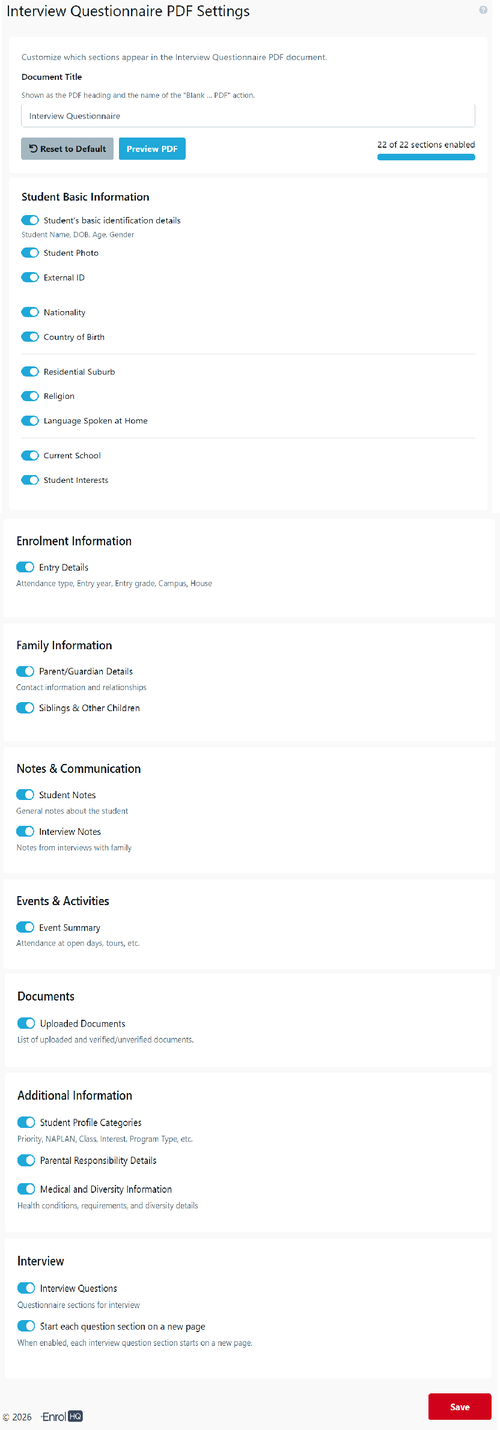
Always remember to save.
Note: You can revert to defgault at any time and preview your changes
Once you download the PDF, if you go to pages 2 and beyond, you will see each section with its questions printed out as you have set up like below.
Interviewers can choose to complete the questions on the form, scan and upload to the upload files or type into the Interview Notes field after adding the questions.
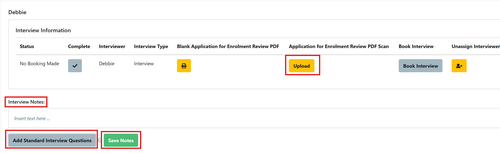
Add questions to the edit field
One cool feature if you don't want to print the PDF but want to type the notes into the 'Interview Notes' box is there's a "Add Standard Interview Questions" button at the bottom of the Interview Tab in the Student Profile. If you click this it will copy all the pre-set interview questions into the box so you can type the answers inline.