
Incorporating GTM to EnrolHQ lets you collect analytics such as page clicks and form conversions from your website.
Add Google Tag Manager to EnrolHQ
Note: This set up requires an advanced understanding of analytics and conversion tracking.
Background
Google Analytics is a tool to record visits, UTM tags, session duration, referral traffic etc to your EnrolHQ pages.
Google Tag Manager (GTM) is a place to house all your tracking snippets (Including Google Analytics, Meta Pixel etc) for 1 easy to manage container. Once GTM is added to EnrolHQ, your agency can then manage all your tags via GTM without requiring access to EnrolHQ.
How to link GTM to EnrolHQ
- If not already, create a Google Tag Manager account https://tagmanager.google.com/ - you will get an ID like GTM-MZXXXXXXXX after you set it up.
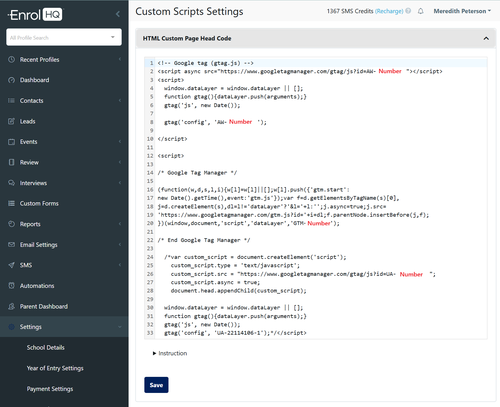
- Go to Settings > Custom Scripts > HTML Custom Page Head Code to add the code. Below, you'll find the code you need to add to EnrolHQ. When adding, change out the GTM codes (referenced twice) with your own GTM ID. Then click save.
Popular Options
- If not setup and linked inside Google Tag Manager already, you can set up and link Google Analytics for tracking visitors to your EnrolHQ pages. https://analytics.google.com/
- If not set up and linked already, you can set up a Meta Pixel for tracking Facebook and Instagram advertising (see instructions below).
- If not set up and linked already you can set up Adwords for tracking Google Advertising. Here is an article.
Install your Meta pixel via Google Tag Manager
- Log in to your Google Tag Manager account.
- Select your website's container and click Add a new tag.
- Click Custom HTML tag and enter a name for your tag.
- Go to Meta Events Manager and select Add event.
- Select From a new website.
- Select Install code manually.
- Select Copy code to copy the entire pixel base code.
- Return to Google Tag Manager and paste the code in the HTML container.
- Click the Advanced settings drop-down menu and select Once per page below Tag firing options.
- Below Fire on, select All pages.
- Click Create tag.
Tracking Properties inside EnrolHQ
Specific functions are called on specific page only, enrolHQInitAlways is called on all pages.
- Enrolment Update: function enrolHQInitEnrolment()
- Enrolment Update submit success: function enrolHQOnEnrolmentSubmitSuccess()
- Application: function enrolHQInitEOI()
- Application submit success: function enrolHQOnEOISubmitSuccess()
- All event pages: function enrolHQInitEvent()
- Event list: function enrolHQInitEventList()
- Event details: function enrolHQInitEventDetails()
- Booking configrmation page: function enrolHQOnBookingConfirmation()
- Enquiry: function enrolHQInitEnquiry()
- Enquiry submit success: function enrolHQOnEnquirySubmitSuccess()
- Register your interest page: function enrolHQInitRegisterInterest()
- Parent dashboard pages: function enrolHQInitParentDashboard()
- Payment success page: function enrolHQInitPaymentSuccess()
- Custom forms submit success: function enrolHQOnCustomFormSubmitSuccess()
Example Embed Scripts
<!-- Google Tag Manager -->
<script>
(function(w,d,s,l,i){w[l]=w[l]||[];w[l].push({'gtm.start':
new Date().getTime(),event:'gtm.js'});var f=d.getElementsByTagName(s)[0],
j=d.createElement(s),dl=l!='dataLayer'?'&l='+l:'';j.async=true;j.src=
'https://www.googletagmanager.com/gtm.js?id='+i+dl;f.parentNode.insertBefore(j,f);
})(window,document,'script','dataLayer','GTM-MZXXXXXXXX');
<!-- End Google Tag Manager -->

function enrolHQInitAlways(){
$(window).on('load',function(){
$('body').prepend("<noscript><iframe src='https://www.googletagmanager.com/ns.html?id=GTM-MZXXXXXXXX' height='0' width='0' style='display:none;visibility:hidden'></iframe></noscript>");
});
}
</script>