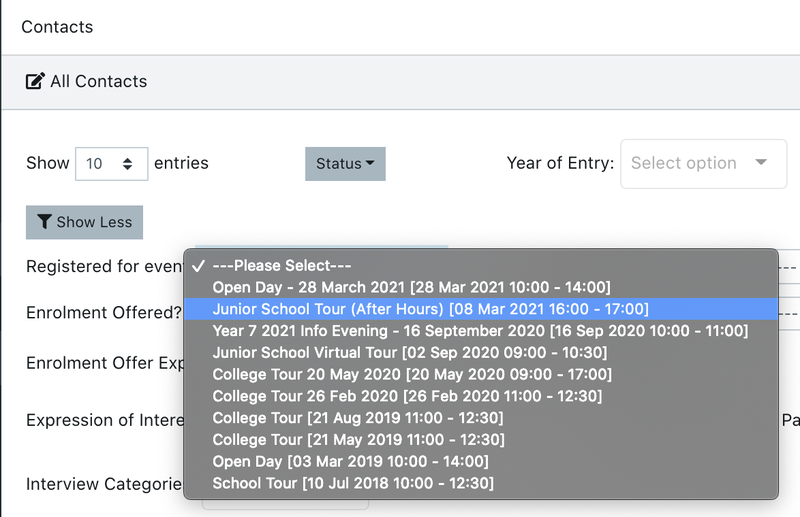
How to filter for people registered to an event, and sort out event attendees vs no shows.
Steps to filter for families booked into an event
When filtering attendees vs non-attendees, it is important to be aware of the EnrolHQ event attendance process.
- A parent makes a booking and the booking status becomes 'Registered'.
- Staff or volunteers manually mark attendees 'Attended' when they arrive.
- After 8 hours if the registered booking isn't marked 'Attended', it automatically moves to 'Not Attended' status.
If you want to filter for families booked into a specific event (so you can do Bulk Actions like Send Emails) go to Contacts > All Prospective and open 'Show More' filters. Then click on the 'Registered For Event' dropdown and select the event.
There are also filters to choose people who attended the event - to send them a follow-up to the event, or people who didn't attend - in case you need to send the "Sorry we missed you" email.