
EnrolHQ integrates with TASS through its Online Enrolments API feature. TASS is one of the rare school management systems in Australia, with an open and well documented API anyone can use.
Introduction
The Alpha School System, known as TASS in the Australian education sector, is a school management system that EnrolHQ pushes online enrolments to. TASS is a SaaS solution, originally built in Queensland many years ago when ColdFusion was in common use. Its API is documented on GitHub and is open for anyone to integrate with. The specific API EnrolHQ integrates with is at this location. EnrolHQ uses V3 of the TASS API, which requires TASS version 54.4 or later. TASS versions below 54.4 use the V2 API, which EnrolHQ does not integrate with.
How to set up TASS for EnrolHQ integration
Note: The school requires a valid TASS.web Online Enrolments licence. The API does not work if the licence has expired. In this case, the API logs in System Admin > Utilities > API Gateway Maintenance > TASS APIs > Log show a 401 “invalid license” error.
Let EnrolHQ know if the school’s TASS API is protected by Cloudflare. EnrolHQ’s IP addresses need to be whitelisted for EnrolHQ to connect to it.
Requirements
General
To set up TASS for EnrolHQ integration, log in to TASS as an administrator and go to System Admin > Utilities > API Gateway Maintenance > TASS APIs > Add API Integration.
Clicking Add API Integration opens the “TASS API Application Details” form. Fill in the form and tick “Would you like to enable the API?”.
For more information, visit the TASS Knowledgebase article here.
Supply EnrolHQ with the following items:
Item 1
Provide the school’s TASS URL, e.g. https://[domain]/tassweb/api/
Item 2
In TASS > API Gateway Maintenance > TASS APIs, supply EnrolHQ with the following API credentials:
- Application Code.
- Application Description.
- Licence Code.
- Token Key.
- Company Code, found at the top right of TASS. This is often 01, but it differs between schools.

Item 3
Confirm whether EnrolHQ syncs receipts (application form and offer acceptance payments) to TASS. Some schools prefer their finance staff to handle receipts manually. See Receipts section below.
Item 4
Some EnrolHQ setups include a documents field for uploading multiple school reports at once (e.g. the latest two).
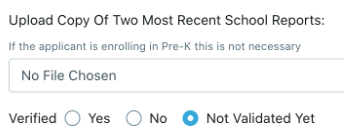
To sync all of these uploads to TASS, confirm:
- Whether they sync to Notes instead of UD Area Attachment Fields.
- Whether they appear under “Student Note” or “Student Confidential”.
Item 5
If no Security Role exists, create one. The Security Role must be assigned to the API.
Item 6
The Security Role needs several permissions to look up the relevant database tables. Most are View permissions. Some are Write permissions.
All required permissions are documented in this GitHub repository.
For example, EnrolHQ retrieves all religion codes from TASS so it can pass them to TASS when pushing an enrolment across. The getReligions.md page looks like this:
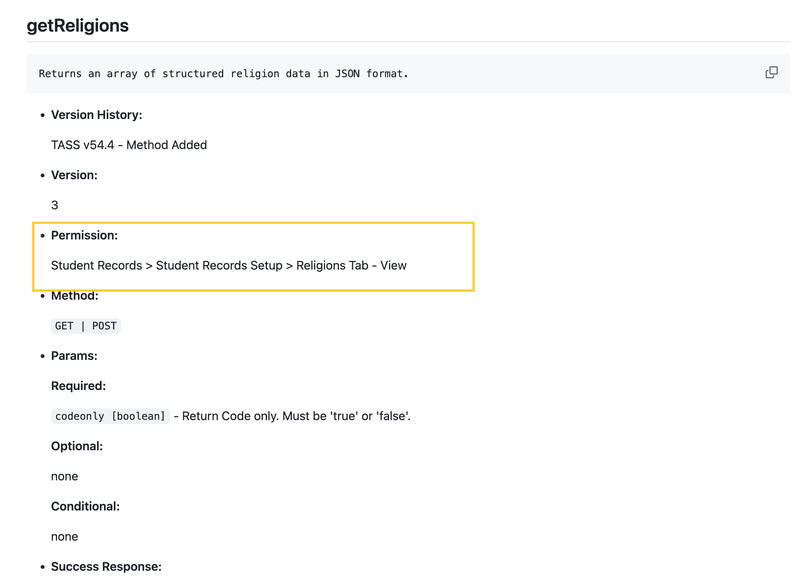
The page lists the permissions the API role needs, such as “Student Records > Student Records Setup > Religions Tab - View”.
To enable this permission, go to Users > Security Role Permissions > select the role > expand Student Record, then tick View on Religions Tab.
Set the permissions for every method listed in the GitHub repository linked above.
The full list of permissions to enable for the Security Role can be found here.
Item 7
Supply EnrolHQ with the “Registration Fees Receipt Code”, found in Enrolments > Setup Information > Enrolments Setup > Receipting tab. Also supply an example electronic payment showing the Receipt Type Code, GL Code and Tax Code, as described in the Receipts section below.
Item 8
Supply EnrolHQ with the “Enrolment Deposits Receipt Code”, found in Enrolments > Setup Information > Enrolments Setup > Receipting tab. Also supply an example electronic payment showing the Receipt Type Code, GL Code and Tax Code, as described in the Receipts section below.
Documents
EnrolHQ syncs documents to TASS using the following methods. Let EnrolHQ know the school’s preference:
- EnrolHQ maps documents to a User Defined Area (UD Area) with attachment fields in TASS. Provide screenshots of the UD Areas to sync to, so EnrolHQ can create the mappings.
- Alternatively, EnrolHQ syncs documents as Student Notes with attachments.
- EnrolHQ only syncs documents to UD Area Attachment Fields or Student Notes. EnrolHQ does not sync documents to other areas, e.g. immunisation history statements do not sync to the Immunisation tab.
Note: To sync documents to existing UD Area mappings, send EnrolHQ screenshots of the current UD Area setup. EnrolHQ maps to these existing UD Areas.
Otherwise, to create new UD Areas for EnrolHQ:
- Go to Student Records > Setup Information > Student Records Setup > UD Areas tab.
- Click the Add UD Area button.
- Set the description, e.g. Documents from EnrolHQ.
- Click Attachment Fields, then add the following 10 fields:
- Birth Certificate.
- Immunisation History Statement.
- School Report. Note: only required if school reports are not syncing to attachments in Notes, as per Item 4 above.
- NAPLAN.
- Assessment Report.
- Enrolment PDF.
- Copy Of Passport.
- Copy Of Visa.
- Court Orders or Parenting Plan.
- Supporting Medical Documents.
- Set the Role for the new UD Area.
- Create a second UD Area with Attachment Fields for syncing other documents (e.g. Enrolment Acceptance document) and assign the appropriate Role.
- Screenshot both UD Areas, including their Codes, and send them to EnrolHQ.
- After a push to TASS, view the file by going to the Enrolled Student, clicking the UD Areas tab, then clicking View for the relevant UD Area, e.g. “Documents from EnrolHQ”. Testing with PDF files confirms TASS serves them with the correct MIME type.
For full instructions, visit the TASS Knowledgebase articles.
TASS Stages
Let EnrolHQ know if the school uses a stage setup different to the default here in Enrolled Student > Status tab. If so, send EnrolHQ a screenshot of the school’s stages or a copy of the table mapping.
Medical Conditions
In EnrolHQ, go to Settings > School Details and open the Medical Conditions tab. Check the options match the school’s TASS Medical Conditions, e.g. the top 10 most common conditions.
If the options do not match, adjust the TASS Medical Conditions by going to Student Admin > Medical Records > Setup Information > Medical Setup and clicking the Conditions tab.
For more information, visit the TASS Knowledgebase here.
Student, Parent and Medical UD Fields
If the school has customised the Student UD, Parent UD or Student Medical UD fields in TASS, send EnrolHQ a screenshot or spreadsheet of the UD fields to map to. EnrolHQ creates a mapping to sync each UD field to TASS where EnrolHQ has an appropriate field to use.
Examples of Student UD field mappings:
- Split Family (flag field Y/N).
- Enquiry Source (table reference field or textfield).
- Lives With (table reference field or textfield).
Examples of Parent UD field mappings:
- Parent 1 Employer (textfield).
- Parent 2 Employer (textfield).
- Parent 1 Nationality (textfield/table reference).
- Parent 2 Nationality (textfield/table reference).
Receipts
Note: EnrolHQ only syncs TASS enrolment receipts where both the “Receipt Type Code” and “GL Code” come from TASS Student Admin > Enrolments > Setup Information > Enrolments Setup, on the Receipting tab.
Let EnrolHQ know whether to sync the EnrolHQ enrolment application fee, the acceptance of offer fee, or both, to TASS. To sync either fee, EnrolHQ requires:
- The Receipt Type Code of the application or offer payment (a single-letter code, e.g. “G”).
- The GL Code of the application or offer payment, e.g. “xx-xxxxx-xxxxx”.
- The Tax Code for the payment type (usually a two or three-letter code, e.g. “EX”).
- Go to TASS Finance > Parent Accounts > Receipting > Electronic Receipts Processing.
- Find an Electronic Receipt batch with type “Enrolment” (not “Sundry”) and click the Edit Batch button.
- Find a payment with the relevant Receipt Type (in this example, “G”) and send EnrolHQ a screenshot of the whole payment.
If no relevant electronic receipts exist, check with TASS support how to find the Tax Code linked to the Receipt Type to be mapped.
After syncing, capture the receipts in the Finance > Parent Accounts > Receipting > Electronic Receipts Processing module in TASS.
For more information, visit the TASS Knowledgebase article here, or contact TASS support.
Common Questions
What is a common process for staff to sync enrolments to TASS from EnrolHQ?
For new students not in TASS and without an EnrolHQ external ID:
- Staff review the EnrolHQ application and verify documents.
- Staff click the Sync TASS button at the top right of the EnrolHQ Student Profile to start the sync process.
- Staff go to TASS to review and process the application in the “Online Enrolment Application Details” screen.
- TASS runs an automatic search for possible matches to Parent Records already in the TASS database. Click the arrows beside “Existing Parent…” to check whether any results match the carers on the enrolment application record.
- An automated task syncs verified documents, addresses and medical data within minutes of staff processing the new enrolment in TASS.
- Staff click the Sync TASS button again at any time to sync verified documents, updated addresses and medical data.
For existing students in TASS with an EnrolHQ external ID (i.e. imported into EnrolHQ by CSV):
- On a profile with a TASS Student Code (external ID), staff review any updated information and verify documents. Staff click the Sync TASS button at the top right of the EnrolHQ Student Profile to sync any new verified documents, addresses and medical data.
Note: New verified documents also sync on the hour if staff do not click the Sync TASS button manually. - Follow the same process outlined above from that point.
What are the mandatory fields required to sync to TASS?
- Student first name and last name.
- Student gender.
- Student date of birth.
- Student entry year and grade of entry.
- Carer first name and last name.
- Application date.
Where does the enrolment appear when we press Sync TASS?
Once the sync is set up, open a student’s record.
Verify any files on the Documents tab.
A Sync TASS button appears at the top right of the record. Use it to push enrolments to TASS.
The enrolment appears in TASS under Enrolments > Enrolment Information > Online Enrolment Applications:
Review and process the enrolment by following the TASS Knowledgebase article here.
When can I sync an application to TASS?
The TASS update API feature allows a second sync when the EnrolHQ status changes after Application. This second sync updates the Stages in TASS (e.g. Stage 3 == ) and some fields. See the “Update Sync” column on the “EnrolHQ to TASS fields sync” tab of the spreadsheet below.
For more information about the fields EnrolHQ syncs, see this document:
When can I sync an application to TASS?
With the introduction of the TASS update API feature, it is possible to sync again when the EnrolHQ status changes after Application to update the Stages in TASS (e.g. Stage 3 == ) and some of the fields - please refer to the below spreadsheet's "EnrolHQ to TASS fields sync" tab which has an "Update Sync" column.
For more information about the fields we sync, please refer to this document.
When can documents sync to TASS?
EnrolHQ syncs documents to the UD Area in TASS as long as the student is still in the Enrolments section in TASS.
After the enrolment is reviewed and processed in TASS, EnrolHQ automatically syncs the student’s verified documents to TASS. The documents appear in the UD Area of the enrolled student record. Staff can also click the Sync TASS button again to sync new verified documents to TASS.
Notes:
- Documents must be marked as Verified in EnrolHQ to sync to TASS. See this article for details.
- Documents 16MB or larger do not sync and are skipped. Re-upload a smaller copy to EnrolHQ. The smaller copy syncs automatically once the file size is within the limit.
- If the enrolled student is transferred to current students before their documents sync, EnrolHQ cannot sync those documents across.
Setting the Student Notes permission
To sync notes to the Enrolled Student Notes tab, enable the following view/add/edit/delete permission for the Security Role assigned to the API. Let EnrolHQ know whether notes sync to “Student Notes” or “Student Confidential Notes”.
Can imported applications from TASS into EnrolHQ be synced with TASS again?
TASS designed the TASS Online Enrolments API to support new student enrolments only.
TASS does not support updating or reprocessing enrolments for students who already have a record in TASS. The exception is students originally created via the API, who went through the staging table process in TASS. This restriction includes students with previously cancelled enrolments.
If a student already exists in TASS, school staff review and manually reconcile any information submitted via an online application, then reject the online enrolment. Review this GitHub ticket for further information.
The workaround is for the school to raise a ticket with TASS asking TASS to populate the d3_enrolments table for these manually entered applications. TASS API updates then work for these applications.
For imported records with an imported application date, the EnrolHQ application does not show a checked Paid Application Fee.
For imported applications with a manual application date, staff check TASS to confirm whether the applicant has paid the application fee.